 rdark
rdarkHow to Install Tor Browser (and Verify It's Real)
Knowing how to install Tor Browser is the easy half; knowing how to confirm the file you downloaded is genuine, and how to configure it so it actually protects you, is the part almost every guide skips. A tampered browser defeats every other precaution you take, and a correctly installed one at the wrong settings still leaves you exposed. This guide covers the whole job: where to download it, how to install it on each platform, how to verify the signature the way the Tor Project intends, the security level that matters most, how to get connected when Tor itself is blocked, and the hard limits of what the browser can and cannot protect.
Download only from the Tor Project
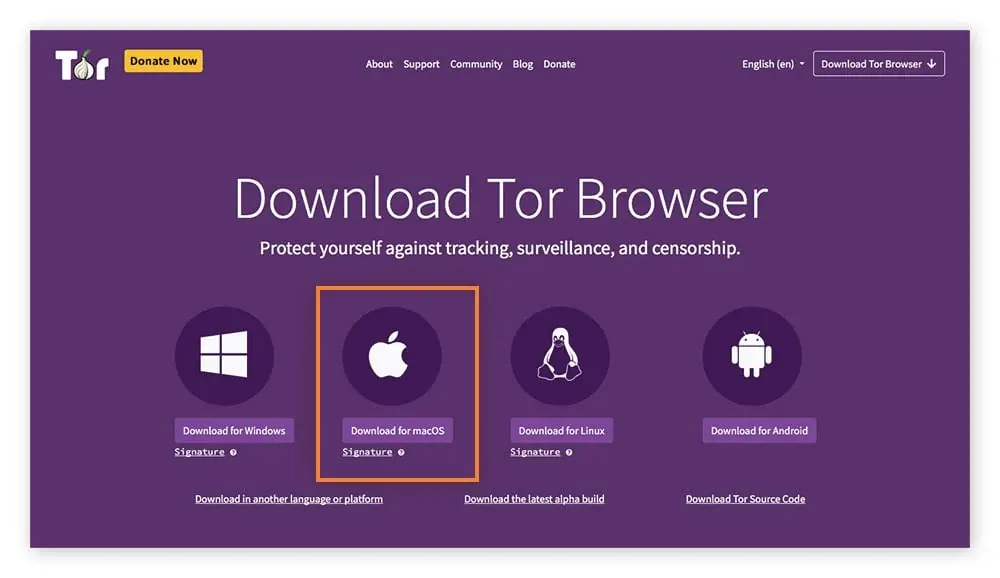
Get the installer from the official Tor Project download page — that URL exactly, and nowhere else. Search ads, software-aggregator sites, torrents, and "mirror" links are common vectors for backdoored builds that have historically shipped added tracking or malware, and there is no legitimate reason to use them. Bookmark the real page so you are not relying on a search engine to find it next time, since a poisoned search result is precisely the attack. While you are there, download the small .asc signature file next to your installer as well; you will need it to verify the download in a moment.
One exception matters: if the Tor Project's site itself is blocked where you are, do not reach for a random alternative. Use the official GetTor service by emailing gettor@torproject.org, which replies with links to the genuine build and its signature from mirrors the project trusts. That keeps you on a verified path even when the front door is shut.
Install it, step by step
The installer differs by platform, but the shape is the same everywhere: download, optionally verify (do it — see the next section), then run. Pick your system.
- Windows. Download the
.exe, then double-click it and complete the wizard. Windows Defender sometimes flags the installer through a behavioral heuristic; that is a false positive, and the signature you verify in the next step is the real proof of authenticity. Tor Browser is portable and does not touch system libraries, so it installs cleanly anywhere. - macOS. Download the
.dmg, open it, and drag Tor Browser into your Applications folder. The first launch may need a confirmation through Gatekeeper because the app came from outside the App Store. - Linux. Download the
.tar.xzarchive and extract it with your archive manager ortar -xfon the command line. Inside the extracted folder, run./start-tor-browser.desktop --register-appto launch it and add it to your applications menu. (Note that 32-bit Linux support is being retired, so use a 64-bit system.) - Android. Install the official Tor Browser for Android from Google Play, F-Droid, or the Tor Project site. Its companion app Orbot can route other apps through Tor. There is no Tor Browser for iPhone or iPad — Apple's engine rules prevent it — so iOS users are pointed to the project-endorsed Onion Browser instead, which is weaker.
Verify the download is genuine
The Tor Project signs every release, and checking that signature confirms the file came from them and arrived intact. This is the step that turns a download into a trusted one, and it uses the same OpenPGP tooling explained in our PGP verification guide — worth reading once so the logic makes sense everywhere it recurs. First install GnuPG if you do not have it: Gpg4win on Windows, GPGTools on macOS, and on most Linux distributions it is already present. Then run three steps in a terminal (or cmd.exe on Windows):
- Import the signing key. Run
gpg --auto-key-locate nodefault,wkd --locate-keys torbrowser@torproject.org. This fetches the Tor Browser Developers signing key, whose fingerprint isEF6E 286D DA85 EA2A 4BA7 DE68 4E2C 6E87 9329 8290. Confirm that fingerprint against the Tor Project's own site — importing the wrong key would make a forgery verify cleanly, which is the one mistake that defeats the whole exercise. - Save it to a keyring. Run
gpg --output ./tor.keyring --export 0xEF6E286DDA85EA2A4BA7DE684E2C6E8793298290so the next command can check against it. - Verify the installer against its signature. Point
gpgvat the.ascfile and the installer — for example,gpgv --keyring ./tor.keyring tor-browser-...tar.xz.asc tor-browser-...tar.xz(substitute your exact filenames). A line reading "Good signature from Tor Browser Developers" means the file is authentic and you can install it.
If the result says BAD signature, stop: the file was altered or corrupted in transit. Delete both the installer and the signature, and download again from the official page. A "this key is not certified with a trusted signature" notice is normal and only refers to the web of trust, not to the file's validity, so it can be ignored once the signature itself reads good.
Set the security level
Once Tor Browser is running, the single most valuable setting is the security level, reached through the shield icon beside the address bar. It offers three presets, and the difference between them is mostly how much active content — JavaScript above all — they allow, because scripting is the classic route to deanonymizing a Tor user.
| Level | JavaScript | Trade-off | Use when |
|---|---|---|---|
| Standard | On everywhere | Everything works; largest attack surface | Lowest-stakes, convenience-first browsing |
| Safer | Off on non-HTTPS sites | Some media and fonts restricted | A middle ground for everyday use |
| Safest | Off everywhere | Many sites look plainer or break | Anything sensitive — the recommended default here |
For the use this site is about, set it to Safest. Disabling JavaScript everywhere closes the largest single class of browser exploits, and the plainer pages and occasional breakage are exactly the trade you want. Do not try to recreate this by hand-editing about:config or tuning NoScript yourself — non-standard tweaks make your browser fingerprint unique, which can deanonymize you. Use the preset as shipped.
Using Tor safely once it runs
A verified browser at the right level still depends on a few habits, because the network protects your connection and not your behavior. Each of these defends the uniform fingerprint that protects every Tor user, or closes a leak the browser cannot:
- Do not resize or maximize the window. Unusual dimensions are a fingerprinting signal; leave the window at its default size.
- Do not install add-ons. Extensions break the uniform fingerprint every Tor user shares and can leak data. The browser already ships with what it needs.
- Never log into a real-name account. Opening your ordinary email or a personal profile in a Tor session links the anonymous circuit to your identity in one step — the most common self-inflicted mistake by a wide margin.
- Avoid downloading files, and never open them while online. A document opened later in another application can reach out to a server and reveal your real IP. If you must handle one, open it offline.
Getting connected when Tor is blocked
If your network, workplace, campus, or country blocks Tor outright, the built-in answer is a bridge — an unlisted entry relay a censor's blocklist does not know about. When a direct connection fails, Tor Browser's Connection Assist tries to fetch a working configuration automatically; failing that, open Settings, go to the Connection or Bridges section, and choose "Request bridges" (you will solve a captcha) or visit the Tor Project's bridges website and paste the lines it gives you.
Bridges come in flavors called pluggable transports, and the differences matter where censorship is sophisticated. obfs4 disguises Tor traffic so it does not look like Tor; Snowflake bounces you through a rotating pool of volunteer browsers, making it hard to block without breaking ordinary web traffic; and WebTunnel, the newest, wraps the connection to look like everyday HTTPS, so blocking it means blocking the normal web. For most people on an open connection, bridges are unnecessary — but knowing they exist matters the day a connection stops working. The same machinery is covered from the access angle in our guide to reaching the dark web.
What Tor Browser hides, and what it does not
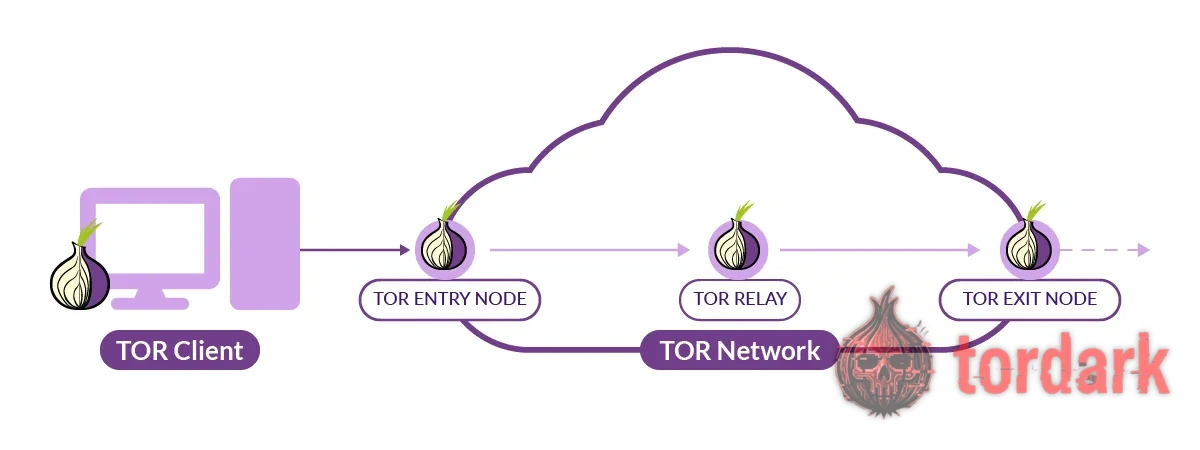
Tor Browser hides which sites you visit from your local network and hides your address from the sites you reach, by routing traffic through three relays so no single relay sees both ends. That guarantee is strong, and it is also narrow. It does not conceal the fact that you are using Tor from your internet provider — which is what bridges are for — and it does nothing about information you volunteer, such as a username or a payment detail. It cannot protect you from a malicious file you download and then run outside its sandbox, either.
Understanding that boundary is the whole game: Tor is an anonymity layer for your connection, not a shield against your own behavior or against software you choose to execute. A browser exploit or a careless login can bypass everything the network provides, which is why "Safest" exists and why the highest-stakes use belongs inside an amnesic system like Tails or an isolating one like Whonix, where even a browser compromise cannot reach your real IP. Most real-world failures happen right at that edge, where a user quietly assumes the tool covers more than it actually does.
What to do after setup
With a verified browser at the "Safest" level, confirm you are actually on Tor by visiting check.torproject.org — a "Congratulations" message means the circuit is working. From there, the next skills are verification and payment privacy, not finding a destination. Learn to confirm an address with the PGP guide, understand why Monero replaced Bitcoin on the markets that survive, and see how addresses are presented in the verified directory. A correctly installed browser is the floor, not the finish line.
Common questions about installing Tor
Is it safe to download Tor Browser?
Downloading Tor Browser from the official site and verifying its signature is safe; the risk is pulling a modified build from somewhere else. Fake, trojaned Tor builds seeded through search ads and "mirror" sites are a real and recurring attack, and a browser tampered with before you ever run it cannot be fixed by careful settings afterward. The signature check is what turns "probably fine" into "confirmed genuine," which is why it earns the extra two minutes. Skip it and you are trusting whatever server actually sent the file, which is the one thing you cannot see.
How do I verify Tor Browser's signature?
Download the ".asc" signature file alongside the installer, install GnuPG (Gpg4win on Windows, GPGTools on macOS, preinstalled on most Linux), then import the Tor Browser Developers signing key and check the file against it. The key fingerprint is EF6E 286D DA85 EA2A 4BA7 DE68 4E2C 6E87 9329 8290 — confirm it on the Tor Project's own site, not from a single third-party page. A result reading "Good signature from Tor Browser Developers" means the file is authentic; a "BAD signature" means stop, delete it, and download again from the official URL. The mechanics are the same OpenPGP check covered in our PGP guide.
Which Tor Browser security level should I use?
Three levels sit behind the shield icon: Standard, Safer, and Safest. Standard leaves JavaScript on everywhere and is the weakest. Safer disables JavaScript on non-HTTPS sites and restricts some media and fonts. Safest disables JavaScript entirely, which removes the single largest class of browser exploits used to deanonymize Tor users, at the cost of breaking some sites. For anything sensitive, use Safest — the broken pages are the price of closing that attack surface, and it is a cheap one.
Does Tor Browser work on a phone?
On Android, yes — install the official Tor Browser for Android from the Tor Project site, Google Play, or F-Droid, and its companion app Orbot can route other apps through Tor. On iPhone and iPad there is no Tor Browser, because Apple forces every browser onto its WebKit engine; the Tor Project instead points iOS users to Onion Browser, optionally paired with Orbot, which cannot match desktop protections. Mobile anonymity is weaker than desktop in practice, because phones leak more identifying signals, so prefer a computer for anything sensitive. The download-and-verify rule applies identically on every platform.
Is it legal to use Tor Browser?
In most countries, yes. Running Tor and visiting onion services is lawful in the United States, the UK, the EU, Canada and most of the world, and the network is used every day by journalists, researchers, and people evading censorship. A few governments restrict or actively block Tor, which is what bridges are designed to get around. What is illegal is specific conduct you might carry out — buying controlled goods, for instance — which is a crime regardless of the network used to reach it. Installing and running the browser is not the line; particular actions are.
What is the safest way to keep Tor Browser updated?
Let Tor Browser update itself, and confirm any update only through the browser's own mechanism or the official site, never through a pop-up or a third-party prompt. Outdated builds carry known, patchable vulnerabilities, so running an old version is a risk in its own right, separate from anything you do online. Each release is signed exactly the way the first download is, which means the verification habit you learned for the installer applies to every update too. When in doubt, download fresh from the official page and verify again, rather than trusting an in-place prompt you cannot inspect.